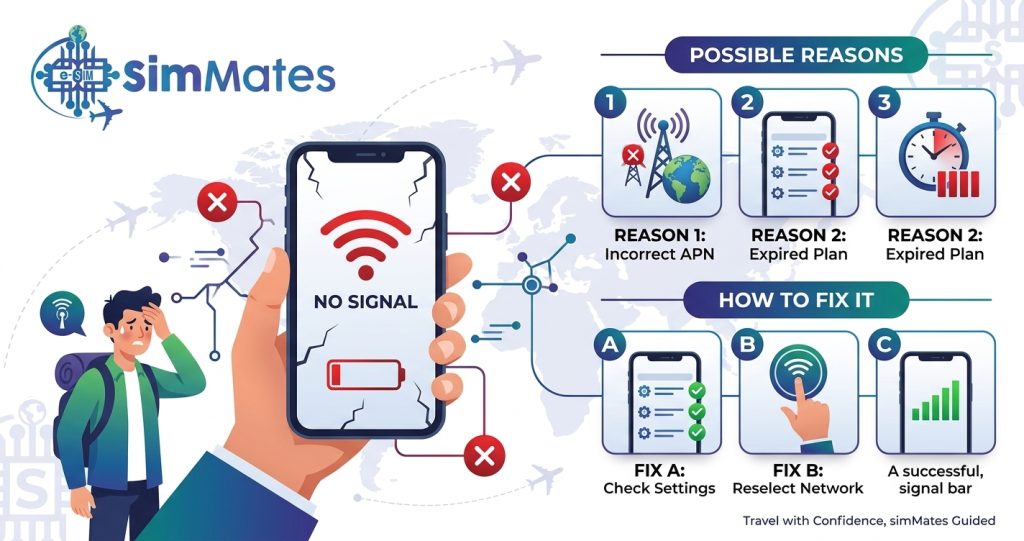
You land in a new country, check your phone, and see the worst words a traveller can read: No Service. Or you see SOS only. Or the bars are simply empty. At Simmates, we hear from people in this exact spot every week, and most assume their eSIM is broken. Usually it is not. A travel eSIM no-signal problem almost always comes from a setting, a network mismatch, or a simple coverage gap you can fix in a few minutes.
This guide explains the real reasons behind it, shows you how to tell them apart, and gives you a clear order of fixes to try.
First, Work Out Which Problem You Have
People use “no signal” to describe several different problems. The fix depends on which one you face, so check this before you change anything.
- No bars and “No Service”: your phone cannot find any network at all.
- SOS only: your phone sees a network but will not register on it, apart from emergency calls.
- Bars but no internet: the signal is fine, but data will not load.
- Signal that comes and goes: the connection drops in some places and returns in others.
If you see bars but no data, our guide on what to do when your eSIM is not working after landing covers that case in more detail. This article focuses on the cases where the phone finds weak, unstable, or no network at all.
Travel eSIM No Signal: The Common Causes
Nine times out of ten, one of these causes sits behind a travel eSIM no signal problem. Read the list once, then use the fixes below.
- The eSIM line is switched off in your phone settings.
- Your phone selected a network your plan doesn’t support.
- The phone is locked to your home carrier.
- You are in a real coverage gap, such as a rural area, a tunnel, or a mountain pass.
- Airplane mode or a software glitch is blocking registration.
- The eSIM profile did not install correctly.
- Your phone does not support the network bands used at your destination.
- The plan has not started yet or has already expired.
Most of these are easy to check. The next sections go through them one at a time.
Fix 1: Turn the eSIM Line On
It sounds basic, but it catches a lot of people. After installation, some phones leave the new line switched off, or switch it off when you change settings.
- iPhone: open Settings, tap Mobile Service, select the travel eSIM, and switch on Turn On This Line.
- Android: open Settings, tap Network and Internet, then SIMs, choose the eSIM, and switch it on.
If the eSIM does not appear in the list at all, the installation may have failed. In that case, check your confirmation email and follow the installation steps again, or contact support before you delete anything.
Fix 2: Reset the Connection With Airplane Mode and a Restart
When a phone lands in a new country, it sometimes holds on to old network information. A quick reset forces it to search again.
- Switch on airplane mode and wait ten seconds.
- Switch it off and wait up to two minutes. If you need a quick eSIM no service fix, this and a restart solve a large share of cases.
- If nothing changes, restart the phone fully.
- Check the signal again once the phone is back on.
This simple step fixes a surprising number of eSIM no service cases, especially right after a long flight.
Fix 3: Choose the Network by Hand
Your phone usually picks a network automatically. Abroad, it may choose one that your plan does not use, and you end up with no service even though other networks are present.
- iPhone: go to Settings, Mobile Service, select the eSIM, tap Network Selection, switch off Automatic, and pick a network.
- Android: go to Settings, Network and Internet, SIMs, choose the eSIM, and turn off Automatic network selection.
Your eSIM provider should list supported networks for each country. Choose one from that list and wait about a minute. If it fails, try the next one.
This is one of the most useful steps in how to fix eSIM network issues, because the search can take up to a few minutes. Be patient and let the phone finish.
Fix 4: Check for a Carrier Lock
A phone bought on a contract is often locked to one carrier. A locked phone may accept the eSIM but refuse to connect, which gives you No Service or SOS only.
- Ask your home carrier whether your phone is free of carrier locks.
- On iPhone, open Settings, General, About, and look at “Carrier Lock”. It should read “No SIM restrictions”.
- On Android, check the lock status with your carrier or the phone maker.
Do this before you fly. Removing a carrier lock can take days, and it is hard to fix from an airport.
Fix 5: Check Whether You Are in a Coverage Gap
Sometimes the eSIM works perfectly, and the network simply does not reach where you stand. This happens more often than people expect.
Common dead spots include:
- Mountain roads and high-altitude trails.
- Rural areas far from towns.
- Tunnels, underground train sections, and basements.
- Small islands, boats, and ferries.
- Large buildings with thick walls, such as airports and malls.
Walk to an open area, go near a window, or move to higher ground and check again. If the signal returns, the eSIM is fine, and you were in a gap.
In remote places, plan. Download offline maps and save key details before you leave coverage. Our guide to Pakistan travel eSIM coverage shows how this works in a country with strong cities and patchy mountains, and our post on eSIM for rare destinations explains what to expect on remote islands.
Fix 6: Make Sure the Network Bands Match
Phones connect through radio frequencies called bands. A phone bought in one region may not support every band used in another. This matters most for older phones and for phones sold in only one market.
Most modern phones support the bands used worldwide, so this is rare. Still, check these points:
- Your phone model is listed as eSIM compatible by your provider.
- The phone is the international version, not a limited regional one.
- The destination uses networks your plan supports, such as 4G or 5G.
If you see signal on 4G but nothing on 5G, try switching your phone to 4G or LTE only. In some places, 5G coverage is patchy, and a phone that keeps hunting for it drops the connection.
Fix 7: Update Your Phone Settings and Software
Old software can cause strange network problems. A short update check costs nothing.
- Install any pending system update, ideally on WiFi before you travel.
- Check for a carrier settings update. On iPhone, this appears as a pop-up, or under Settings, General, About.
- Turn on automatic date and time, because a wrong clock can stop a phone from registering.
- Make sure no SIM PIN lock is blocking the eSIM line.
If the problem began right after an update, restart the phone once more and test again.
Quick Reference: Symptom, Cause, and Fix
| What You See | Likely Cause | What to Try First |
| No Service, no bars | eSIM line off or wrong network | Turn the line on, pick a network by hand |
| SOS only | Network will not accept the phone | Check carrier lock, choose another network |
| Signal drops in some places | Real coverage gap | Move to open ground, use offline maps |
| Signal on 4G only | 5G patchy in the area | Set phone to 4G or LTE |
| eSIM missing from the list | Install failed | Reinstall as instructed, contact support |
| Worked, then stopped | Plan expired or data used up | Check usage in your provider app |
| Nothing works anywhere | Locked phone or faulty install | Check for carrier lock, contact support |
Save this table as a screenshot before you travel. It is much easier to use when you have no signal.
Travel eSIM Troubleshooting Checklist You Can Save
If you want a single list to keep on your phone, use this one. Work from the top and test after each step.
- Confirm that the eSIM line is switched on.
- Turn airplane mode on and off.
- Restart the phone.
- Select the network by hand from your provider’s list.
- Check that the phone has no carrier lock.
- Move to an open area to rule out a coverage gap.
- Switch to 4G or LTE if 5G keeps dropping.
- Check for updates and automatic date and time.
- Look at your plan status in your provider app.
- Contact support with details if nothing works.
This simple travel eSIM troubleshooting routine takes about ten minutes. Most problems clear before you reach step eight.
Real World Example
Picture a traveller arriving in Tbilisi for a week. Her eSIM showed No Service when she landed, even though other passengers around her had signal. She had installed the eSIM at home and switched it on during the flight.
She worked through the list. The line was on, and airplane mode made no difference. She then opened network selection, switched off automatic, and found three networks. The first one failed. The second connected within a minute.
Her phone had picked a network that her plan did not support. The eSIM was fine, and the fix took about four minutes. When she later reached a mountain village, the signal dropped again. This time she knew it was a coverage gap, so she opened her offline map and carried on.
The lesson is useful for any trip. Two different problems can look the same, so check which one you have before you panic.
Prevent a Travel eSIM No Signal Problem Before You Fly.
A little preparation at home removes most of the risk.
- Check that your phone supports eSIM and has no carrier lock.
- Install the eSIM at home on WiFi so you can fix any installation problem calmly.
- Save your provider’s network list and support contact as a screenshot.
- Download offline maps and booking details for every stop.
- Keep your home SIM active for text codes and bank messages.
- Check the coverage notes for your destination, especially for rural areas.
Once you are online, keep your plan healthy with our tips to reduce data usage while travelling, so you do not run out halfway through the trip.
When the eSIM Is Not Working Abroad, and Nothing Helps
If you have tried every step and still see no service, stop changing settings. Too many changes can make the problem harder to trace. Instead, gather a few facts and contact your provider.
- Your order number and the email you used to buy.
- The country and city where you are.
- Your phone model and software version.
- What you see: No Service, SOS only, or something else.
- The steps you already tried.
Good support teams can check your eSIM status on their side and tell you whether the plan is active, whether the network is down in your area, or whether the profile needs a reset. The Simmates support team asks for the same details, so having them ready speeds up any reply.
Remember too that an eSIM not working abroad is sometimes a short network outage. Wait a few minutes, then test again before you assume the worst.
Final Thoughts
A travel eSIM no signal problem feels serious, but it rarely means the eSIM is broken. Start with the basics: turn the line on, reset the connection, and choose the network by hand. Then check for a carrier lock and think about whether you are standing in a coverage gap. That order is the simplest answer to how to fix eSIM network issues on the road.
Prepare before you fly, keep a screenshot of the checklist, and stay calm. Work through the steps in order, and you will most likely get a signal back within minutes.
Frequently Asked Questions
1. Why does my travel eSIM show no signal when I land?
The most common reasons are the eSIM line being off, your phone choosing a network your plan does not support, or a carrier lock on the phone. Turn the line on, restart, and pick a network by hand.
2. What does “SOS only” mean on my phone?
It means your phone sees a network but cannot register on it, so only emergency calls work. Try a different network manually, and check that your phone has no carrier lock.
3. How do I fix eSIM no service after a long flight?
Switch airplane mode on for ten seconds, then off. Restart the phone if nothing changes, and wait up to two minutes for it to search. Then choose the network manually if needed.
4. Can a locked phone cause a travel eSIM to have no signal?
Yes. A phone locked to one carrier may accept the eSIM install but refuse to connect. Confirm with your carrier that your phone has no carrier lock before you travel.
5. Why is my eSIM not working abroad in some places but fine in others?
That usually points to a coverage gap rather than an eSIM fault. Rural areas, mountains, tunnels, and thick buildings often have weak or no signal. Move to open ground and test again.
6. How do I fix eSIM network issues without contacting support?
Turn the line on, toggle airplane mode, restart, select the network manually, and check for updates. If your phone is set to 5G, try 4G or LTE. Most problems clear within ten minutes.
7. Should I delete my eSIM if there is no signal?
No, not as a first step. Many QR codes work only once, and deleting the profile can leave you without a plan. Try the settings checks and contact support before you remove it.
8. Will my eSIM start working again if the plan expired?
No. If the plan has expired or the data is used up, the connection stops. Check your usage and validity in your provider app, then buy a new plan or top up if you need one.