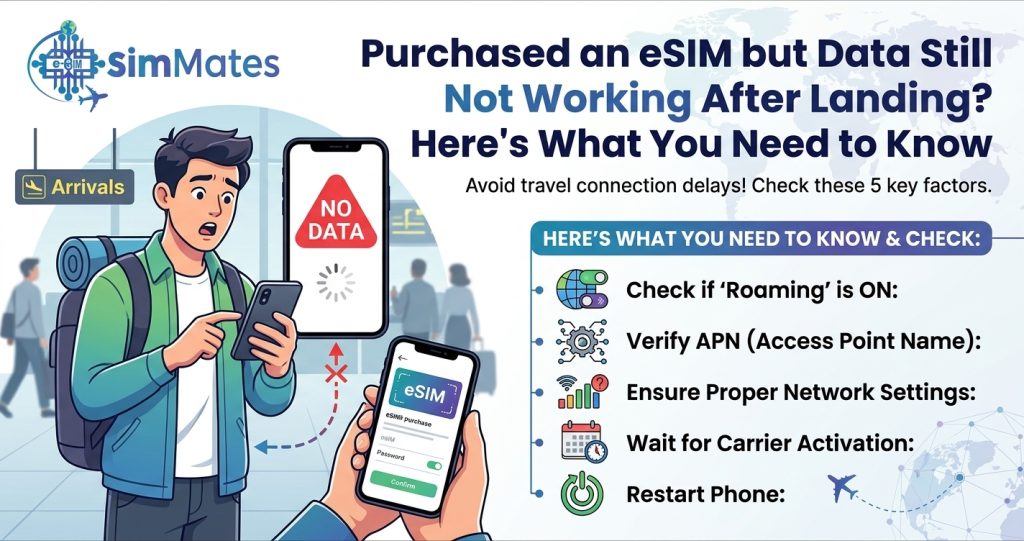
You step off the plane, switch off aeroplane mode, and wait for the bars to appear. They do, but nothing loads. No maps, no messages, no ride app. At Simmates, this is the most common message our support team sees, and the good news is that almost every case has a quick fix. In most situations, the eSIM is fine. One setting on the phone is simply pointing the wrong way.
This guide walks you through every check in the order that solves problems fastest. Work through it from the top, and you will probably be online before you reach passport control.
eSIM Not Working After Landing: Why It Happens
Before you change any settings, it helps to understand what is actually going on. An eSIM does not connect on its own. Your phone has to do four things correctly at the same time.
- Recognise the eSIM profile you installed.
- Use that eSIM as the active data line.
- Allow data roaming on that line.
- Join a local network that your plan supports.
If any one of these four fails, you see the classic symptom: full bars, no internet. That is why an eSIM not working after landing feels so confusing. The signal looks fine, but the data path is blocked somewhere.
A travel eSIM not working on arrival is rarely a plan problem. It is usually a phone setting, a missed step, or a network that needs a nudge.
eSIM Not Working After Landing? Start With These Quick Checks
Start with the simple things. About half of all cases are solved in the first five minutes.
- Turn on the eSIM line. Open your mobile or SIM settings and make sure the travel eSIM is switched on.
- Choose it for mobile data. Set the eSIM as your data line. Your home SIM should not be the one handling data.
- Switch on data roaming for the eSIM. This is the setting most people miss.
- Toggle aeroplane mode. Turn it on, wait ten seconds, and turn it off.
- Restart your phone. A restart makes the phone register on the local network again.
Check your connection after each step. Many travellers find the problem after step three, so do not skip it.
Fix 1: Turn On Data Roaming for the eSIM Line
Your travel eSIM connects to a foreign network, so your phone treats it as roaming. If roaming is off for that line, you get a signal but no data.
- On iPhone: open Settings, tap Mobile Service, select your travel eSIM, and switch on Data Roaming.
- On Android: open Settings, tap Network and Internet, then SIMs, pick the eSIM, and switch on Roaming.
This sounds alarming, but it does not mean your home carrier will charge you. Only your home SIM would bill you for roaming. As long as mobile data is set to the eSIM and your home SIM data is off, you pay nothing extra.
Fix 2: Make Sure the Right Line Is Handling Data
Two SIMs in one phone cause a lot of trouble. If your home SIM still handles mobile data, the eSIM sits idle.
- iPhone: go to Settings, Mobile Service, then Mobile Data, and choose your travel eSIM.
- Android: go to Settings, Network and Internet, SIMs, and set Mobile Data to the eSIM.
- Turn off data switching or “allow mobile data switching” so your phone does not jump back to the home SIM.
- Keep your home SIM on for calls and text codes if you want, but turn off its data and roaming.
This single setting fixes a large share of cases where a travel eSIM is not working.
How to Activate eSIM After Arrival
Some travellers do everything right at home and then wonder why nothing happens on landing. The reason is that many plans only start when you connect to a supported network in your destination.
Here is how to activate eSIM after arrival, step by step.
- Turn off aeroplane mode once the plane doors open.
- Open your SIM settings and switch the travel eSIM line on.
- Select it as your mobile data line.
- Enable data roaming for that line.
- Wait one to two minutes for the phone to register on a local network.
- Open a browser and load a simple page to confirm that data works.
If your plan activates on first connection, the validity period starts now. If it activates on installation, the clock may already be running. Check your confirmation email so you know which applies to your plan.
Do not delete the eSIM and reinstall it as a first attempt. Many QR codes work only once, and deleting the profile can leave you without a plan.
Fix 3: eSIM Connected but No Internet.
This is the most frustrating version of the problem. Your phone shows a network name and full bars, but pages will not load. When you see an eSIM connected but no internet error, work through these checks in order.
- Wait a few minutes. On arrival, the phone can take a short time to complete registration.
- Check for Low Data Mode. On iPhone, open Mobile Data Options and switch off Low Data Mode. On Android, turn off Data Saver.
- Turn off any VPN. A VPN that cannot connect to the local network will block everything.
- Check the date and time. Set both to automatic, because a wrong clock can break secure connections.
- Open a different app. If one app fails but others work, the problem is the app, not your eSIM.
- Test outside WiFi. If your phone is on hotel WiFi, switch it off to see whether mobile data works alone.
If the signal bars show but nothing loads even after all this, move on to the network and APN fixes below.
Fix 4: Choose a Network by Hand
Your phone normally picks the best network on its own. Sometimes it picks one that your plan does not support, and the connection shows bars without data.
- iPhone: go to Settings, Mobile Service, select your eSIM, tap Network Selection, switch off Automatic, and choose a network from the list.
- Android: go to Settings, Network and Internet, SIMs, pick the eSIM, and turn off Automatic network selection.
Your eSIM provider usually lists supported networks for each country. Pick one from that list and wait a minute. Many fixes for a travel eSIM not working start right here. If the first network fails, try another.
Switch back to automatic after you get a connection, so your phone can move between networks as you travel.
Fix 5: Check the APN Settings
APN stands for Access Point Name. It is a small setting that tells your phone how to reach the internet through the eSIM. Most travel eSIMs set it automatically, but some phones, especially Android devices, need a manual entry.
- Open your confirmation email or provider app and look for the APN details.
- On Android, go to SIMs, choose the eSIM, open Access Point Names, and add or edit the entry.
- On iPhone, go to Mobile Service, select the eSIM, and open Mobile Data Network if the option appears.
- Type the APN exactly as given, including capital letters and spaces.
- Save, then restart your phone.
An incorrect APN is one of the top reasons for eSIM mobile data not working abroad, so check it carefully before you contact support.
Quick Reference: Symptom, Cause, and Fix
| What You See | Likely Cause | What to Do |
| No bars at all | eSIM line is off or network not supported | Turn the eSIM line on, restart, try manual network |
| Bars but no internet | Data roaming is off | Switch on Data Roaming for the eSIM |
| Home SIM shows data, eSIM idle | Wrong data line selected | Set eSIM as mobile data line |
| Data works on WiFi only | Low Data Mode or Data Saver on | Turn it off for the eSIM |
| Slow or stuck connection | Weak network or wrong APN | Switch network; check APN |
| eSIM missing from the list | Installation failed or phone locked | Reinstall as instructed or contact support |
| Worked, then stopped | Data used up or plan expired | Check usage in the provider app |
Use this table as a fast check when you are standing in a busy arrivals hall with a dying battery.
Fix 6: Check Whether Your Phone Is Locked
Some phones sold through a carrier are locked to that carrier. A locked phone can accept the eSIM install, yet refuse to use it. This often shows up as a missing line or a “no service” message.
- Ask your home carrier whether your phone is free of carrier locks.
- On iPhone, open Settings, General, About, and look for “Carrier Lock”. It should read “No SIM restrictions”.
- On Android, check the manufacturer’s SIM lock status or ask your carrier.
Do this before you travel, not after. Removing a carrier lock can take days, and it is hard to fix in an airport.
When the Plan Itself Is the Problem
Sometimes the settings are correct, and the plan is the issue. These are worth checking too.
- Data used up. Open your provider app or dashboard to see how much data remains.
- Plan expired. Validity usually counts from first connection or from installation, depending on the provider.
- Wrong country. A plan for one region may not work in a country outside it.
- Network outage. Local networks can have short outages. Test again after a short wait.
- Restricted use. Some plans do not support hotspot sharing or certain services.
If you see these signs, contact your provider. A good provider will check your eSIM status on their side and tell you what is happening.
Real World Example
Picture a traveller landing in Istanbul after a long flight. She installed her eSIM the night before, switched it on at the gate, and saw full bars as the plane touched down. Nothing loaded.
She worked through the checklist. The eSIM line was on, but her home SIM was still set for mobile data. She switched the data line to the eSIM, turned on data roaming, and waited about a minute. The page loaded straight away.
The whole fix took less than three minutes. The eSIM was never broken. One setting was pointing to the wrong SIM.
This story repeats itself often. If you feel stuck, resist the urge to delete the eSIM. Go through the settings first.
Prevent the Problem Before You Fly
A few minutes of preparation at home can save you a stressful arrival.
- Check that your phone supports eSIM and has no carrier lock.
- Install the eSIM at home on WiFi, but leave it switched off until you land if your provider recommends that.
- Save your APN details and support contact as a screenshot in case you have no data.
- Download offline maps and booking details as a backup.
- Keep your home SIM active for text codes and bank messages.
- Learn where the data roaming and data line settings sit on your phone before you travel.
If you want to stretch your plan once it works, read our tips to reduce data usage while travelling. They help you avoid running out in the middle of a trip.
When to Contact Support
Try the fixes above first. Most issues clear within ten minutes. Contact support if any of these happen:
- The eSIM does not appear in your SIM list after a restart.
- You see an error message during installation or activation.
- Data still does not work after you try every setting and network.
- Your data or validity vanished faster than expected.
Have your order number, the country you are in, your phone model, and a short list of what you tried. A clear message gets you a faster answer. Simmates support can check your eSIM status directly, so share your confirmation email when you write in.
Final Thoughts
An eSIM not working after landing is stressful, but it is almost always fixable. Turn on the eSIM line, set it as your data line, switch on roaming, and give the phone a minute or two to register. If that fails, try a different network, check your APN, and confirm that your phone has no carrier lock.
Most importantly, stay calm and avoid deleting the eSIM too early. Work through the checklist from top to bottom, and you will most likely be online within minutes.
Frequently Asked Questions
1. Why is my eSIM not working after landing?
The most common reasons are data roaming being off, the wrong line selected for mobile data, or a network your plan does not support. Check these three first, then restart your phone.
2. How do I activate an eSIM after arrival?
Turn off aeroplane mode, switch on the eSIM line, select it for mobile data, and enable data roaming. Wait a minute or two for the phone to register, then test a web page.
3. Why does my eSIM show a signal but no internet?
An eSIM connected, but no internet error usually means roaming is off, the wrong data line is active, or the APN is incorrect. A VPN or Low Data Mode can also block the connection.
4. Will turning on data roaming cost me extra?
Not for your travel eSIM, because the plan already covers the foreign network. Only your home SIM would charge roaming fees, so keep its data and roaming switched off.
5. Should I delete and reinstall my eSIM if it fails?
Not as a first step. Many QR codes work only once, and deleting the profile may leave you without a plan. Try the settings checks and contact support before you remove it.
6. How long does a travel eSIM take to connect after landing?
Usually one to three minutes. If nothing happens after five minutes, restart your phone, try another network manually, and check your settings.
7. Why is my eSIM mobile data not working abroad but works on WiFi?
Your phone may be using WiFi and hiding a mobile data problem. Turn off WiFi to test the eSIM alone, then check roaming, the data line, and Low Data Mode.
8. Can a locked phone stop a travel eSIM from working?
Yes. A phone locked to one carrier may accept the eSIM installation but refuse to connect. Confirm with your carrier that your phone has no carrier lock before you travel.