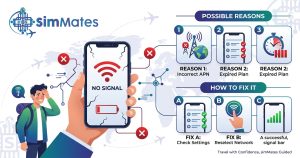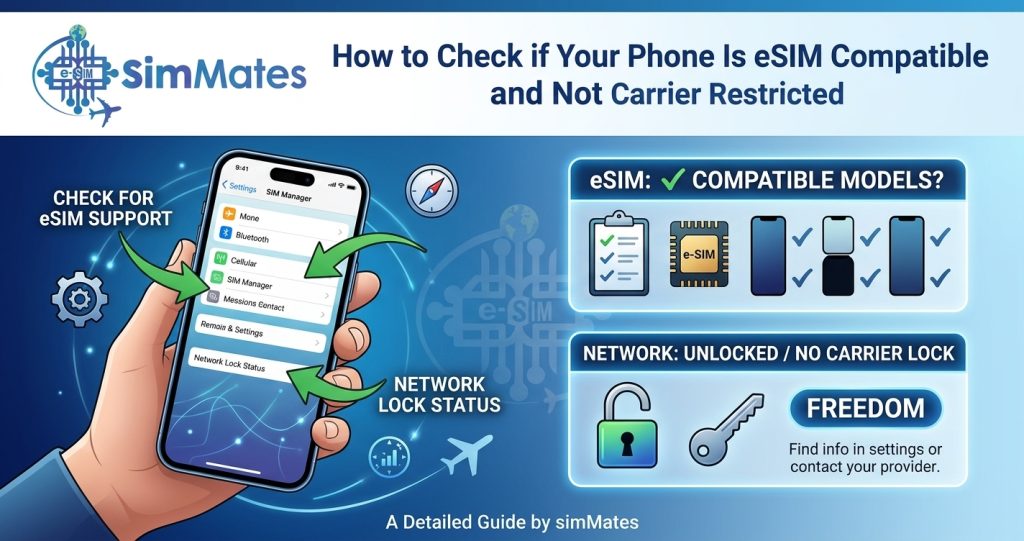
Every year, travelers arrive at the airport, connect to Wi-Fi, and try to install a travel eSIM they bought a week earlier, only to discover their phone doesn’t support eSIM at all, or worse, it’s still locked to their home carrier. The result is the same either way: a failed activation, wasted money, and a scramble to find connectivity in an unfamiliar country.
This is almost always avoidable. Before buying any travel eSIM, there are really only two questions that matter:
- Does your phone support eSIM technology?
- Is your phone unlocked from your carrier?
These are two separate checks, and confusing them is the single most common reason travel eSIM setups fail. This guide walks through both, step by step, using built-in tools already on your phone: no apps, no guesswork.
Simmates is a travel eSIM provider, and this guide is written to help you check your device before you buy any eSIM, from Simmates or anywhere else. A few minutes of verification now can save you a frustrating first day of your trip.
What Does eSIM Compatible Mean?
An eSIM (embedded SIM) is a small chip built directly into your phone’s hardware, rather than a removable plastic card you insert into a tray. Instead of swapping a physical SIM when you change carriers or travel abroad, you install a digital profile, usually via a QR code, and the phone connects to that network electronically.
“eSIM compatible” simply means your phone contains this embedded chip and has the software needed to manage eSIM profiles. It does not automatically mean:
- That your specific carrier allows eSIM use
- That your phone is unlocked
- That every regional version of that phone model has the same capability
This last point trips up a lot of travelers. Phone manufacturers frequently sell regional variants of the same model;l for example, some markets receive dual-SIM (physical + eSIM) versions, while others receive eSIM-only or dual-physical-SIM versions. Two people with what looks like “the same phone” can have genuinely different hardware.
eSIM support can vary by:
- Model (even within the same phone series)
- Region where the phone was purchased
- Carrier the phone was originally sold through
- Software version installed on the device
- Manufacturer-specific restrictions
Because of this, the only reliable way to confirm eSIM support is to check the device itself, not just assume based on the phone’s name or release year. You can also see our full guide on how to check if your phone is eSIM compatible for model-specific notes.
The Fastest eSIM Compatibility Check: Dial *#06#
This is the single fastest way to check for eSIM hardware on almost any modern smartphone, and it takes about 10 seconds.
Step-by-step:
- Open your phone’s dial pad (the same screen you’d use to make a phone call).
- Type in: *#06#
- Your phone will automatically display a screen of device identifiers; no need to press call.
- Look for a field labeled EID.
- If an EID number appears, your device has an embedded eSIM chip.
CHECK THIS BEFORE YOU BUY: Dial *#06# from your phone’s dial pad. If you see an EID number, your phone supports eSIM technology.
An EID (eSIM Identity Document) is a unique identifier tied to the embedded chip itself, similar to how an IMEI identifies the physical device. If your phone displays an EID alongside your IMEI, that’s a strong technical signal that eSIM hardware is present.
Important caveat: an EID confirms hardware capability; it does not confirm that your carrier allows eSIM use, that your phone is unlocked, or that a specific travel eSIM provider supports your exact device. Those are separate checks covered later in this guide. Think of the EID check as step one of a multi-step verification, not the final word. For a deeper walkthrough with device-specific examples, see our guide on how to check if your phone is eSIM compatible.
How to Check eSIM Compatibility on iPhone
iPhones have supported eSIM since the iPhone XS and XR generation, but exact availability still depends on the model and, in some cases, the region where the phone was originally sold. Here are three ways to confirm compatibility on your specific device:
Method :1: Dial *#06#. As described above, dial *#06# and check for an EID. This works on all eSIM-capable iPhones.
Method 2: Check Cellular Settings.Go to Settings → Cellular (or Mobile Data, depending on your region). Look for options such as:
- Add eSIM
- Add Cellular Plan
- Transfer eSIM from Another iPhone
If any of these options appear, your iPhone’s software supports eSIM setup.
Method 3: Check Device Information.Go to Settings → General → About. While this screen doesn’t explicitly say “eSIM compatible,” it displays your model number and other identifiers, which is useful if you need to verify your exact device variant with Apple’s official specifications.
Regional note: Some iPhone units sold in mainland China use a dual-physical-SIM design instead of eSIM. If you purchased your iPhone in a region other than where you’re traveling from, it’s worth confirming your exact model number against Apple’s official support documentation.
Once you’ve confirmed eSIM support, our guide on how to install and activate a travel eSIM on iPhone walks through the setup process in detail.
How to Check eSIM Compatibility on Android
Android is more fragmented than iOS, since dozens of manufacturers customize their own settings menus. There is no single universal path that works for every Android phone; the steps below are general guidance, and your exact menu wording may differ.
Universal method: Dial *#06# This still works across virtually all Android devices. Dial *#06# and check whether an EID appears alongside your IMEI numbers.
Samsung devices: Look in Settings → Connections → SIM Manager. If your model supports eSIM, you’ll typically see an option to add or download an eSIM profile here.
Google Pixel devices: Look in Settings → Network & Internet → SIM (wording varies by Android version). Pixel devices that support eSIM usually show a “Download a new eSIM” or “Add eSIM” option.
Other Android brands: Menu names vary widely and may appear under Mobile Network, Network & Internet, Connections, or manufacturer-specific labels. Look for terms like:
- SIM Manager
- Add eSIM
- Add Mobile Plan
- Download SIM
- Embedded SIM
Why the exact model matters: Not every Samsung, Pixel, or Android phone supports eSIM, and even within a single product line, some regional or carrier-specific variants exclude eSIM hardware entirely. Before purchasing a travel eSIM, check your exact model number (found in Settings → About Phone) against the manufacturer’s official specification page for your region.
eSIM Compatible Does NOT Always Mean Unlocked
This is one of the most misunderstood parts of the process, and it’s worth stating plainly:
A phone can have full eSIM hardware capability and still be locked to a single carrier.
These are two independent things:
- eSIM compatible = the phone’s hardware and software can technically run an eSIM profile.
- Carrier unlocked = the phone is not restricted to a specific carrier’s network and can accept SIM/eSIM profiles from other providers.
A phone can be “yes” on the first and “no” on the second,d and in that case, a travel eSIM generally will not activate correctly, or may only get limited or no network service.
| Check | What It Tells You |
|---|---|
| EID appears after dialing *#06# | Device has eSIM hardware capability |
| “Add eSIM” option appears in settings | Device software supports eSIM setup |
| Carrier Lock status | Whether another carrier’s network can be used |
| Exact regional model | Whether that specific variant supports eSIM at all |
| Provider/network compatibility | Whether a specific travel eSIM plan will actually work |
Skipping the carrier-lock check is one of the most common reasons a travel eSIM fails after the EID check passes.
How to Check If an iPhone Is Carrier Restricted
For iPhones, Apple provides a direct, built-in way to check this:
Go to Settings → General → About → Carrier Lock
- If it says “No SIM restrictions,” your iPhone is unlocked and can generally accept an eSIM from another provider.
- If it displays a carrier name or indicates the device is SIM-locked, you’ll need to contact your carrier about unlocking the device before a travel eSIM will work reliably.
Carriers have their own unlocking policies (often tied to contract completion or payment status), so if your phone shows a restriction, your carrier is the authority on resolving it, not a third-party eSIM provider. No travel eSIM provider, including Simmates, can bypass a carrier lock; unlocking has to happen through the original carrier.
How to Check if an Android Phone Is Carrier Restricted
Android carrier-lock terminology varies significantly by manufacturer, so there isn’t one universal menu path. Depending on your device, look for wording such as:
- Network lock
- SIM lock
- Carrier lock
- Status shown inside SIM Manager
- Mobile network settings showing a restricted carrier name
Some Android manufacturers surface this information clearly in settings; others require you to check with your carrier directly or use a manufacturer-provided status tool. If you can’t find a clear on-device indicator, the most reliable path is to check your carrier’s official unlocking policy page or contact their support line and ask directly whether your device is SIM-locked.
Why an eSIM Can Fail Even When Your Phone Supports It
Passing the EID check and confirming your phone is unlocked significantly improves your odds, but a handful of other issues can still cause an eSIM to fail:
- Carrier lock discovered after purchase
- Regional model that excludes eSIM despite looking identical to other variants
- Unsupported specific device model not covered by the provider’s network
- Unsupported destination network (rare, but possible in some countries)
- Software issues, such as an outdated OS version
- Incorrect installation, such as scanning a QR code twice or losing connection mid-setup
- Wrong APN settings, where manual APN configuration is required
- Expired or invalid activation details, such as an expired QR code
- Poor setup conditions, like installing over unstable Wi-Fi
- Provider-specific restrictions on certain devices or regions
The takeaway: eSIM compatibility is a multi-step verification process, not a single yes/no checkbox. Checking the EID, confirming unlock status, and reviewing your exact model are all part of getting a working eSIM before you travel.
Tourist eSIM Scams: How to Avoid Them
Travelers are a common target for eSIM scams for a few specific reasons:
- They’re often shopping under time pressure, sometimes at the airport itself
- They need connectivity immediately and may not carefully vet a provider
- Cheap, too-good-to-be-true offers are especially tempting right before a trip
- Fraudulent websites can closely imitate the design and branding of legitimate eSIM providers
- QR codes shared through unofficial channels (social media, forwarded messages) are harder to verify
The best defense is slowing down enough to verify a provider before you’re standing in an airport terminal with no signal. Buy your eSIM in advance, from a provider’s official website, and confirm the plan details in writing before paying. For a full breakdown of common tactics, see our dedicated guide on tourist travel eSIM scams and how to avoid them.
eSIM Scam Warning Signs You Should Know
No single sign automatically proves a provider is fraudulent, but the more of these that appear together, the more caution is warranted:
- Prices that are dramatically cheaper than every competitor for the same data/region
- No clear company name, address, or “About” information on the website
- No visible or responsive customer support channel
- Unusual or untraceable payment methods requested
- Vague or missing plan details (data limits, validity period, activation rules)
- A domain name that closely mimics a known brand with slight misspellings
- Website content that reads as copied, poorly translated, or inconsistent
- No clear refund policy or terms of service
- High-pressure tactics urging immediate purchase
- QR codes sent through unofficial or unverifiable channels
- Requests for sensitive personal information unrelated to a data plan purchase
If you notice two or more of these together, treat it as a strong signal to walk away and purchase from a verified source instead.
Is Simmates Legit?
This is a fair question to ask about any eSIM provider before handing over payment details, and it deserves a straightforward answer rather than marketing language.
Rather than asking us to simply say “yes, trust us,” here’s what we’d recommend evaluating for any eSIM provider, Simmates included:
- Does the website clearly explain who operates it and how to contact support?
- Are plan details (data allowance, validity, coverage, price) stated transparently before checkout?
- Is there a working customer support channel?
- Are installation instructions provided clearly, ideally before you even purchase?
- Is there a stated refund or terms policy you can actually read?
- Does the branding feel consistent across the website, checkout, and any communications?
- Is checkout handled through a secure, standard payment process?
- Can you find independent, real user feedback about the provider outside their own site?
- Is coverage and activation information for your destination clearly listed?
Simmates publishes its plan details, coverage information, and installation guidance directly on its website at simmates.com, and offers customer support for setup questions. We’d encourage you to verify these details yourself on the official site before purchasing, the same way you should with any provider, as part of being a safe, informed traveler.
How to Choose Safe Travel eSIM Providers
Use this checklist before buying from any travel eSIM provider:
- Phone supports eSIM (EID confirmed)
- EID appears after dialing *#06#
- Phone is confirmed carrier-unlocked
- Exact phone model is verified as eSIM-supported
- Destination country is covered by the plan
- Data allowance matches your trip’s needs
- Validity period is clearly stated
- Activation rules are clearly explained
- Customer support is available and responsive
- Terms and refund policy are understandable
- Provider’s website looks legitimate and transparent
- User reviews can be independently verified elsewhere
What to Check Before Buying Any Travel eSIM
A simple workflow to follow, in order:
What If Your Phone Is Not eSIM Compatible?
If the *#06# check doesn’t show an EID, or your phone’s exact model doesn’t support eSIM, you still have connectivity options:
- A physical local SIM purchased at your destination
- International roaming through your home carrier
- Pocket Wi-Fi device rented for the trip
Which option makes sense depends on your phone’s capability, trip length, destination, expected data usage, budget, and how much convenience matters to you. For a detailed comparison, see our guide on Pocket WiFi vs Travel eSIM, or our breakdown of Travel eSIM vs physical SIM.
Can You Keep Your Normal SIM and Use a Travel eSIM?
Yes, this is one of the main advantages of eSIM-capable phones with dual-SIM support. You can typically:
- Keep your home SIM active for calls and SMS
- Use a travel eSIM as your data line while abroad
- Manually select which line handles mobile data in your phone’s settings
- Disable data roaming on your home SIM to avoid unexpected roaming charges
Dual-SIM setups do have limitations; some phones only allow one line to use data at a time, and simultaneous voice-plus-data across two active lines isn’t universally supported. For a full walkthrough, see our guide on using the same phone number while traveling, and our guide on switching between multiple eSIM profiles if you plan to carry more than one travel eSIM.
If you’re deciding between a travel eSIM and simply using your home carrier’s roaming, our comparison of Travel eSIM vs international roaming covers the trade-offs.
What to Do If Your eSIM Does Not Work
If your travel eSIM isn’t connecting, work through this sequence before assuming something is wrong with the eSIM itself:
- Check the installation and confirm the eSIM profile shows as installed in your settings.
- Confirm the correct line is selected for mobile data, especially on dual-SIM setups.
- Check whether data roaming needs to be enabled for that specific eSIM line.
- Check APN settings if your provider requires manual APN entry.
- Restart your device; this resolves a surprising number of connection issues.
- Confirm you’re in a covered network area for your destination.
- Do not delete the eSIM while troubleshooting unless your provider’s support team specifically instructs you to; deleting it often means starting the entire installation process over, sometimes without the option to reinstall the same profile.
- Contact your provider’s support team with your order details if the issue persists.
For a full setup walkthrough, refer back to our iPhone installation and activation guide for the correct installation sequence.
Ready to Travel With Confidence
Checking your phone before buying a travel eSIM takes a few minutes and prevents the most common activation failures travelers run into. Start with the *#06# check, confirm your phone is unlocked, verify your exact model, and review the destination plan details carefully. Once you’ve completed those steps, you’re in a strong position to choose a travel eSIM from Simmates or any other provider with confidence rather than guesswork.
Frequently Asked Questions
How do I know if my phone is eSIM compatible?
Dial *#06# on your phone’s dial pad. If an EID number appears on screen, your phone has eSIM hardware. You should also check your phone’s settings for an “Add eSIM” option and verify your exact model against the manufacturer’s official specifications, since eSIM support can vary by region.
What happens when I dial #06#?
Your phone automatically displays device identifiers, including your IMEI number(s) and, if present, an EID number. No call is placed; the code triggers an information screen instead.
What does EID mean on a phone?
EID stands for eSIM Identity Document. It’s a unique identifier tied to the embedded SIM chip in your device, similar to how an IMEI identifies the physical device itself.
Does an EID mean my phone is unlocked?
No. An EID only confirms your phone has eSIM hardware. Carrier lock status is separate and must be checked independently on iPhone via Settings → General → About → Carrier Lock, and on Android through your manufacturer’s SIM or network settings.
How do I check if my iPhone is carrier locked?
Go to Settings → General → About → Carrier Lock. If it says “No SIM restrictions,” your iPhone is unlocked. If it shows a carrier name or lock status, contact that carrier about unlocking the device.
How do I check if my Android phone is carrier restricted?
Menu paths vary by manufacturer, but look for “Network lock,” “SIM lock,” or “Carrier lock” status within your SIM Manager or mobile network settings. If you can’t find a clear indicator, contact your carrier directly to confirm.
Are Simmates legit?
Simmates publishes its plan details, coverage, and support information directly on its official website. As with any eSIM provider, we recommend verifying transparent pricing, clear terms, working customer support, and independent user feedback before purchasing.
How can I avoid a tourist eSIM scam?
Buy your eSIM in advance from the provider’s official website rather than at the airport under time pressure, verify plan details before paying, and be cautious of QR codes shared through unofficial channels.
What are the biggest eSIM scam warning signs?
Unrealistically cheap pricing, no clear company information, no customer support, vague plan details, and pressure to buy immediately are among the most common red flags. Multiple warning signs together should raise real concern.
Can I use a travel eSIM if my phone supports eSIM but is carrier locked?
Generally, no. A carrier-locked phone typically cannot activate an eSIM from a different provider until the lock is removed. You’ll need to contact your carrier about unlocking the device first.