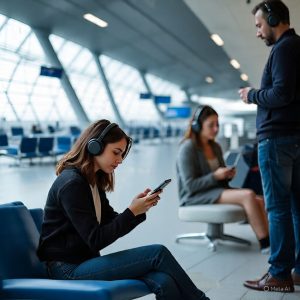
If you’ve ever been on the road and had to get your laptop or tablet online, you understand how beneficial a mobile hotspot may be. It’s a brief manner to share your smartphone’s records at the same time as Wi-Fi isn’t available. With eSIM technology, that technique has emerged as even simpler. You do not want to exchange SIM cards or deliver a couple of SIM cards when travelling. Everything you want is already built into your device. Still, one query comes up regularly: how do you, in reality, turn on a hotspot the use of an eSIM? Don’t worry, it’s less difficult than it sounds. This guide walks you through each step and allows you to make the most of your Travel eSIM plan so you can stay connected anywhere you want.
Can You Use a Hotspot with an eSIM?
Yes, you may. Using a hotspot via an eSIM works just like an everyday SIM card. Once your data plan is active, your smartphone lets you share that reference to other devices. It’s perfect when you want to send documents from your computer or circulate something for your tablet.
If you’re using eSIM, you can share your facts with buddies or coworkers on the go. It’s a fantastic alternative for people who travel collectively or depend upon mobile internet for work. Just make sure your plan includes hotspot usage. Most Travelling eSIM plans do, however, it’s well worth checking before you switch it on.
How to Enable Data Hotspot Using eSIM
For iPhone Users
- Open Settings and tap Cellular.
- Select Personal Hotspot.
- Turn on Allow Others to Join.
- You’ll see a Wi-Fi password on the screen. Use it to connect other devices.
If you don’t see the hotspot option, go to Settings > Cellular Data Network and make sure your Access Point Name (APN) settings are filled in. Your Travel eSIM should configure these automatically once activated.
For Android Users
- Go to Settings > Network & Internet > Hotspot & Tethering.
- Tap Wi-Fi Hotspot.
- Switch it ON.
- Set your hotspot name and password.
Different Android phones might label the alternatives a bit differently, but the setup is similar. After that, your Travel eSIM USA will work like any standard network for sharing data.
If the Personal Hotspot Option is not appearing on the Phone?
If your hotspot option isn’t showing up, don’t stress. Some network providers block it by default, but there’s an easy way to get it working again:
- Open Settings and go to Mobile Service.
- Select your eSIM that is installed on your device.
- Tap Mobile Data Network.
- Scroll down to Personal Hotspot.
- Check the APN listed under Mobile Data.
- Enter the same APN into the Personal Hotspot APN field.
- Go back to the main settings and turn Airplane Mode ON for about one minute.
- Turn Airplane Mode OFF and let your device reconnect to the mobile network.
- Once connected, open Personal Hotspot settings; they should now be available.
Smart Tips for Hotspot Use While Travelling
Using your phone as a hotspot is handy; however, it is able to eat up information speedy. Here’s a way to hold matters under control:
- Limit how many devices connect: Two is usually enough for stable speed.
- Use low-data mode: Many phones let you reduce background activity.
- Set a password: Prevent strangers from connecting to your hotspot.
- Turn it off when you’re done: Saves both battery and data.
- Track your usage: Your phone’s settings show exactly how much you’ve used.
- Pick the right plan: Choose Travelling eSIM depending on where you’re heading for reliable coverage.
These small behavior help you stay linked without losing information or draining your phone too fast.
Why a Travel eSIM Is Great for Hotspot Sharing
A Travel eSIM is designed for flexibility. You don’t need to wait for delivery, stand in line at an airport shop, or pay roaming fees. Everything happens online. You buy, scan, and activate; it’s that simple.
If you’re heading to the United States, Travelling eSIM USA offers you access to rapid, reliable facts anywhere you go. The same applies to Travel eSIM UK, which covers major cities and smaller towns across the United Kingdom. Both plans work excellently for people who rely on a stable hotspot connection while operating, studying, or exploring new places.
With Simmates, you get the convenience of handling your plan whenever and the self-belief of knowing you could stay connected wherever you travel.
Closing Note
Turning on a hotspot, the usage of an eSIM only takes a few taps. It’s one of the easiest ways to share data when you’re touring, working, or just want more connectivity. You don’t want special equipment or a new SIM card, simply a good Travel eSIM plan.
With Travelling eSIM from Simmates, you could stay linked regardless of where life takes you. It’s speedy, flexible, and built for current travellers who like maintaining things simple.
Once you set it up, your phone turns into your private Wi-Fi hub, ready to keep you and your devices online whenever, anywhere.
For quick assistance, contact us or explore more on our website.
FAQs
- Do all phones allow hotspot sharing with eSIM?
Most newer smartphones do. Just check your phone’s compatibility before purchasing your eSIM.
- Why isn’t my hotspot working with my Travel eSIM?
Double-check your plan and APN settings. Restarting the device usually helps.
- Does hotspot use drain my battery fast?
Yes, it could. Keep your phone plugged in if you plan to use the hotspot for long classes.
- Can I connect multiple devices to my Travelling eSIM hotspot?
Yes, you can connect several at once, but too many may slow the speed.
- Is hotspot use part of every Travelling eSIM plan?
Most Travelling eSIM plans include it, but check your plan details first.