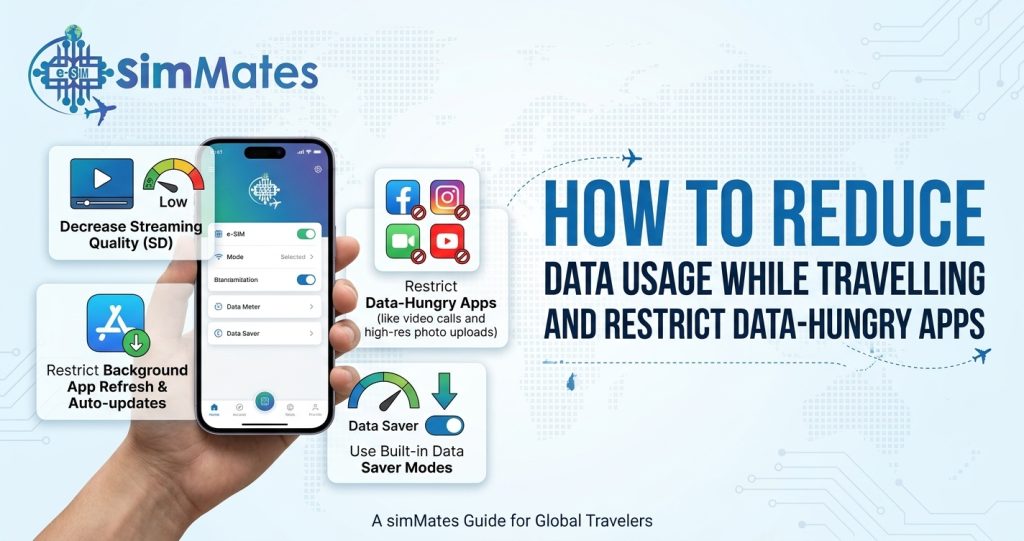
You land in a new country, activate a data plan, and by day three your phone says you are almost out. Nothing dramatic happened. A handful of apps just kept working quietly in the background. At Simmates, this is one of the most common complaints we hear from travellers, and it is usually fixable in about ten minutes. This guide shows you how to reduce data usage while travelling without giving up maps, messages, or the apps you actually need.
You do not need to be technical to follow any of this. Every step works on a regular iPhone or Android phone, and most of it is a one-time setup.
Why Your Data Disappears Faster Abroad
At home, you probably connect to WiFi without thinking about it. Your phone downloads updates overnight, backs up photos while you sleep, and refreshes apps in the background. Most of that happens on WiFi, so you never notice it.
Travelling changes the pattern. You spend more time out of the hotel, you rely on maps, and you share more photos and videos. Your phone keeps doing its usual background work, but now it does it on mobile data.
That is why a plan that lasts a month at home can vanish in a week abroad. The fix is not to stop using your phone. The fix is to control which apps get to use data and when. That is the core of how you manage mobile data while travelling.
Where the Data Actually Goes
Before you start changing settings, it helps to know which activities cost the most. The numbers below are rough estimates, since they vary by app, video quality, and phone. Use them as a guide, not a promise.
| Activity | Rough Data Use | Easy Fix |
| Streaming video in high quality | 1.5 to 3 GB per hour | Download shows on WiFi before you go out |
| Streaming video in standard quality | 0.5 to 1 GB per hour | Lower the quality in the app settings |
| Scrolling social media with autoplay | 300 to 600 MB per hour | Turn autoplay off or use data saver mode |
| Streaming music | 40 to 150 MB per hour | Download playlists on WiFi |
| Video calls | 5 to 25 MB per minute | Switch to voice only when you can |
| WhatsApp voice calls | Under 1 MB per minute | Fine to use freely |
| Map directions | 5 to 50 MB per hour | Download offline maps |
| App updates | 50 MB to over 1 GB each | Allow updates on WiFi only |
Notice that video does most of the damage. If you only change one habit, make it this one.
Step One: Check What Is Using Your Data Right Now
Guessing wastes time, and it is the slowest way to reduce mobile data usage while travelling. Your phone already tracks which apps use the most data, so start there.
- On iPhone, open Settings, tap Mobile Service, and scroll down to see data use for each app.
- On Android, open Settings, tap Network and Internet, then Data Usage, and look at the app list.
Reset the counter on the day you arrive in a new country. That way you see real numbers for your trip instead of months of old history.
Check it again after two days. Most travellers find two or three apps responsible for the bulk of their usage, and the culprit is rarely the one they expected. Photo backup and social media are the usual suspects.
How to Restrict Data Usage on Apps
Once you know the heavy users, you can limit them. This is the part that gives you the biggest return for the least effort, so take your time here. Here is how to restrict data usage on apps on both types of phones.
On iPhone
- Open Settings, tap Mobile Data, and use the toggles in the app list to switch off mobile data for apps you only need on WiFi, such as cloud storage or video apps.
- Turn on Low Data Mode under Mobile Data Options. This pauses automatic updates and background tasks.
- Go to Settings, then General, then Background App Refresh, and switch it off for apps that do not need to update in the background.
- Turn off automatic app updates over mobile data in the App Store settings.
On Android
- Open Settings, tap Network and Internet, then Data Usage, and set a data warning and a limit that matches your plan.
- Turn on Data Saver. It blocks background data for most apps until you open them.
- Tap an individual app in the data usage list and switch off Background Data for the worst offenders.
- In the Google Play Store settings, set app downloads and updates to WiFi only.
A good rule: if an app does not need to work while your screen is off, it does not need mobile data in the background.
Data Saving Tips for Travellers Before You Leave
The easiest savings happen before you board. A little preparation on hotel or airport WiFi means far less data used once you are on the move. These data-saving tips for travellers take about twenty minutes in total.
- Download offline maps. Save the cities you will visit in your maps app. Directions still work without data, and the files are small compared to what live maps would use over a week.
- Download entertainment. Save a few episodes, playlists, and podcasts for flights, trains, and evenings.
- Update your apps. Run every pending update on home WiFi so your phone does not try to do it abroad.
- Download translation packs. Most translation apps let you save a language for offline use.
- Save key documents. Keep booking confirmations, tickets, and addresses in an offline folder rather than hunting through email on a weak signal.
Test everything once while still on WiFi. Switch your phone to airplane mode, then open the maps, music, and documents to confirm they work without a connection.
How to Save Data While Travelling With Maps, Video, and Calls
Different activities need different tricks. Here is how to save data while travelling in the three areas that cause the most trouble.
Maps
Maps feel light, but live maps in a busy city can add up, especially if you reload them constantly. Use offline maps whenever possible, and only switch to live mode when you need traffic or public transport times. Turn off satellite view, since it uses far more data than the standard map.
Video and Social Media
Social media is the silent drain. Videos start playing on their own, and most apps load them in high quality by default.
- Turn off autoplay in every social app you use.
- Switch on the in-app data saver where one exists.
- Wait for hotel WiFi before uploading videos or photo albums.
- Pause cloud photo backup while you are out and let it run at the hotel.
Calls and Messages
Voice calls over WhatsApp and similar apps use very little data. Video calls use much more. If a call does not need video, skip it. When you must use video, lower the quality or move to a spot with a stronger signal, since a weak connection makes apps work harder and use more data to compensate.
Reduce Data Consumption on Phone: Everyday Habits
Settings do most of the work, but small habits matter too. These simple habits help you reduce data consumption on your phone during a long trip.
- Connect to trusted WiFi at your hotel, a café, or a restaurant whenever it is available. Avoid sensitive logins like banking on public networks.
- Close apps you are not using instead of leaving them open.
- Use the browser’s lite or data-saving options where available, and avoid heavy websites with autoplaying video.
- Stream music at a lower quality setting. You will rarely notice the difference through earbuds on a busy street.
- Check your usage every couple of days rather than waiting until the plan runs out.
Think of your data like a daily budget. A few minutes of attention each morning prevents a surprise at the end of the week.
Choosing a Travel eSIM Plan That Matches Your Usage
Good settings only go so far. If your plan is too small for your trip, you will run out no matter how careful you are. Picking the right size at the start is part of the job.
A Travel eSIM lets you buy a data plan for your destination before you fly, install it on your phone, and avoid expensive roaming charges. Because you choose the data amount and the number of days, it is easy to match the plan to how you really use your phone.
Here is a rough way to size it:
- Light use: maps, messaging, and email. Plan for around 300 to 500 MB per day.
- Moderate use: the above plus social media and some video calls. Plan for around 1 GB per day.
- Heavy use: regular video calls, streaming, or working from your phone as a hotspot. Plan for 2 GB or more per day.
If you are unsure, check your own history. Look at your phone’s usage on a normal week at home, then add a margin for maps and photo sharing. A slightly larger plan costs less than running out in the middle of a trip.
If you want a plan matched to your destination, Simmates offers Travel eSIM plans by country and region, so you can pick the amount of data that fits your trip. Whatever provider you choose, always check that your phone supports eSIM and is unlocked before you buy.
Real World Example
Here is a typical scenario. A traveller heads to Turkey for ten days with a 5 GB plan. By day four, half the data is gone, even though she has only used maps and messages.
She checks her usage screen and finds three problems. Her photo app is backing up every picture over mobile data. Her social apps are autoplaying videos. A streaming app is downloading episodes in the background because she forgot to turn off automatic downloads.
She switches those off, sets her phone to update apps on WiFi only, and downloads maps for the next city. The remaining data now lasts the rest of the trip, with some left over. She did not change how she travelled. She only changed which apps were allowed to use data without asking.
This pattern shows up again and again. The problem is rarely the thing you are doing on purpose. It is the thing your phone does when you are not looking.
Common Mistakes to Avoid
- Waiting until your data runs low before checking usage.
- Leaving cloud photo backup on mobile data while taking hundreds of photos.
- Forgetting that app updates can download hundreds of megabytes each.
- Using video calls when a voice call would work just as well.
- Buying the smallest plan to save money, then paying more for a top-up.
- Skipping the offline map download because you plan to rely on WiFi.
Quick Wins to Reduce Data Usage While Travelling Today
If you only have five minutes, do these in order. Each one takes less than a minute and makes a real difference.
- Reset your data counter so you can see what your trip really uses.
- Turn on Low Data Mode on iPhone or Data Saver on Android.
- Switch off background data for your three heaviest apps.
- Set app updates to WiFi only.
- Pause cloud photo backup until you reach your hotel.
- Turn off autoplay in your social media apps.
- Download offline maps for the places you will visit.
That list alone solves the problem for most people. It also gives you a clear habit to repeat on every trip, so you can manage mobile data while travelling without thinking about it each time.
Final Thoughts
Running out of data abroad feels like bad luck, but it is almost always preventable. Check what is using your data, restrict the apps that do not need it, download what you can on WiFi, and pick a plan that matches how you really use your phone.
You do not have to live in airplane mode or skip photos. You only need to decide which apps earn the right to use your data, and which can wait for the hotel WiFi. Do that once, and you will reduce mobile data usage while travelling on every trip from here on.
Frequently Asked Questions
Q1. What is the fastest way to reduce data usage while travelling?
Turn on Low Data Mode on iPhone or Data Saver on Android, then switch off background data for your heaviest apps. Combined with downloading offline maps, this can save a lot in a few minutes.
Q2. How much data do I need per day when travelling?
It depends on how you use your phone. Light users who rely on maps and messaging often manage with 300 to 500 MB a day. If you use social media and video calls regularly, plan for about 1 GB or more.
Q3. Does Low Data Mode or Data Saver stop my apps from working?
No. Your apps still work when you open them. These modes mainly stop background activity such as automatic updates, background refresh, and uploads, so you only spend data on what you are actively using.
Q4. Do offline maps really save data?
Yes. Once you download a map on WiFi, directions work without a live connection. You only use data if you switch to live traffic or satellite view, which most travellers do not need all day.
Q5. Is it safe to use hotel or café WiFi to save mobile data?
It is fine for browsing, maps, and downloads, but be careful with banking and sensitive accounts. Public networks are shared with strangers, so use your mobile data or a trusted connection for anything private.
Q6. Can a travel eSIM help me manage mobile data while travelling?
It can. With a travel eSIM, you choose the amount of data and the length of the plan before you fly, so you know your limit in advance. It also avoids roaming charges, which means you pay a clear price instead of a surprise bill.
Q7. Which apps use the most data on a trip?
Video streaming apps and social media apps with autoplay are usually the biggest. Cloud photo backup and automatic app updates come next, particularly if you take lots of pictures or have many pending updates.